Setting up AWS Budgets
Updated
•2 min read
T
Cloud & SRE specializing in AWS and DevOps. I share my ongoing learning journey through practical tutorials and insights. Let's grow together.
AWS Budget Creation Guide: Monthly Cost Monitoring
Objective
Create a monthly cost budget in AWS to monitor and control cloud spending.
Prerequisites
- AWS Console access
- Appropriate IAM permissions for AWS Budgets
- Valid email address for notifications
Procedure
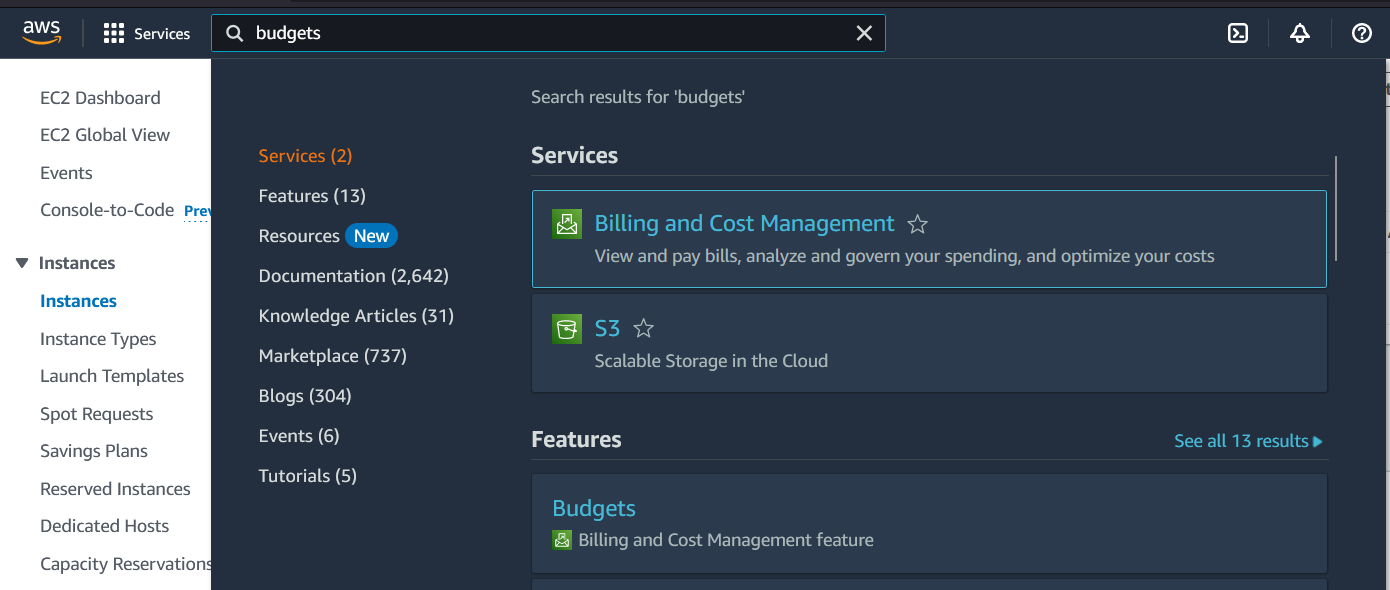
1. Access AWS Budgets Service
- Log into the AWS Management Console
- Using the navigation bar, search for "Budgets"
- Select Budgets from the service results
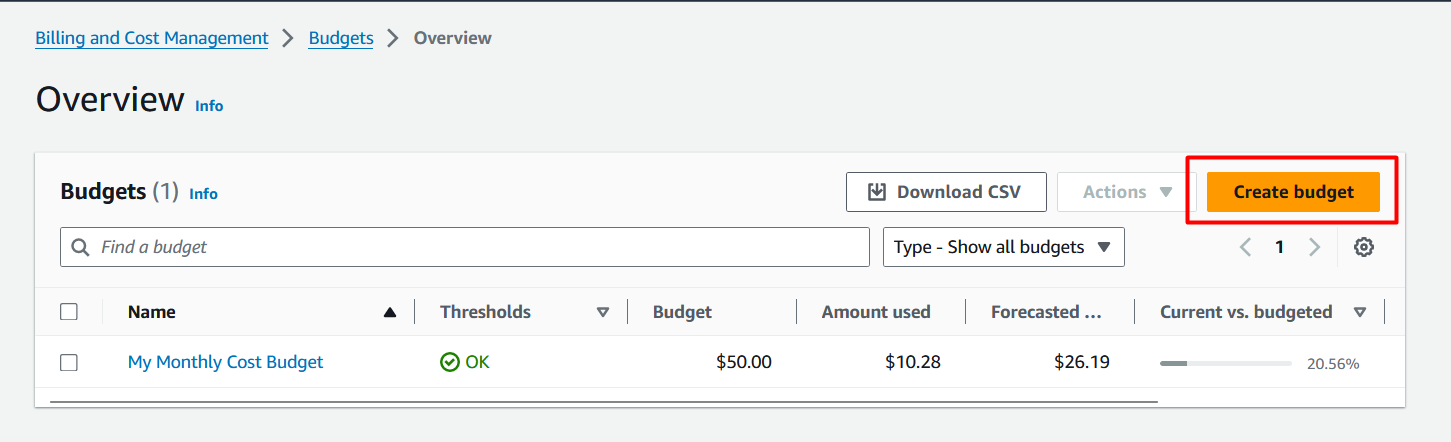
2. Initiate Budget Creation
- From the AWS Budgets dashboard
- Click the
Create budgetbutton
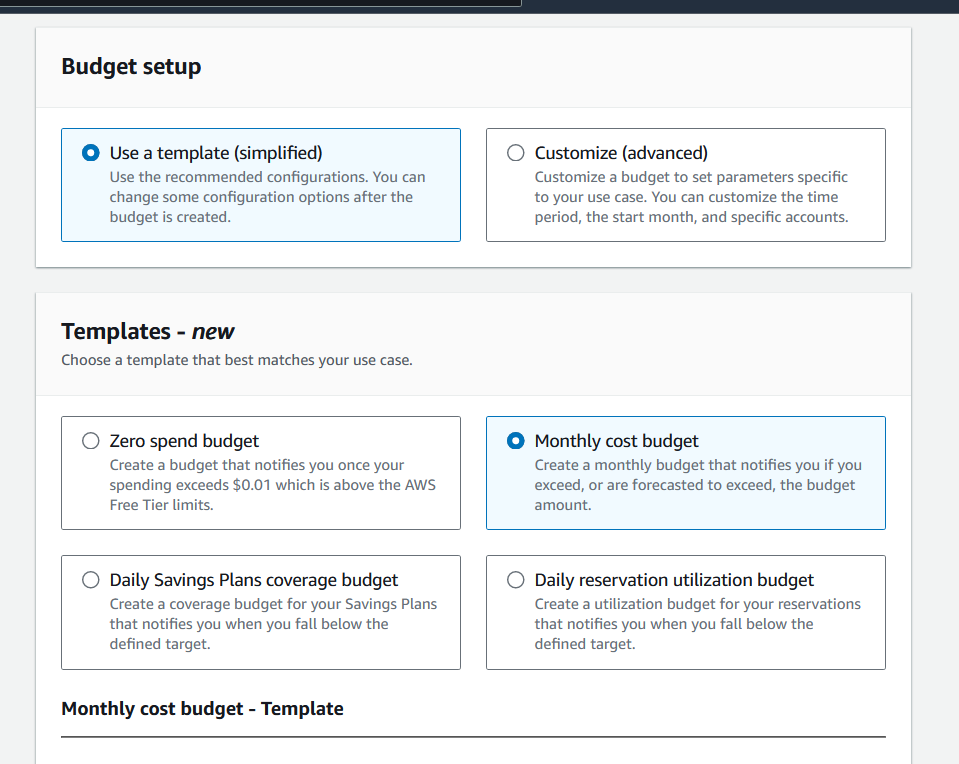
3. Configure Budget Template
- Under "Choose budget type" section:
- Select
Use a template (simplified) - Choose
Monthly cost budgettemplate
- Select
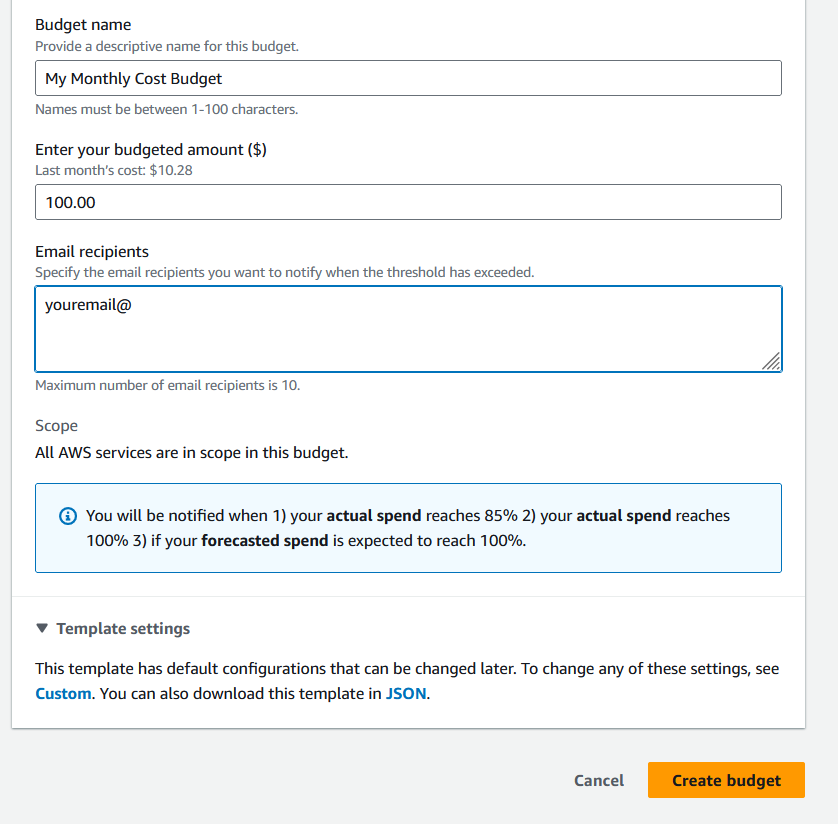
4. Set Budget Parameters
| Parameter | Value | Description |
| Budget Name | My Monthly Cost Budget | Descriptive identifier for your budget |
| Budgeted Amount | 100 | Monthly spending limit in USD |
| Email Recipients | your@email.com | Notification contact for budget alerts |
5. Finalize Configuration
- Verify all entered parameters
- Click
Create Budgetto deploy
Expected Outcome
- ✅ Monthly cost budget active and monitoring
- ✅ Email notifications configured for spending alerts
- ✅ Budget tracking against $100 monthly threshold
Resources & Next Steps
- 📦 Full Code Repository: AWS Learning Labs - Get the complete, working code from this post
- 📖 More Deep Dives: Whispering Cloud Insights - Read other technical articles
- 💬 Join Discussion: DEV Community - Share your thoughts and questions
- 💼 Let's Connect: Linkedin - I'd love to connect with you


