Day 37: Managing EC2 Access with S3 Role-based Permissions

Cloud & SRE specializing in AWS and DevOps. I share my ongoing learning journey through practical tutorials and insights. Let's grow together.
Lab Information
The Nautilus DevOps team needs to set up an application on an EC2 instance to interact with an S3 bucket for storing and retrieving data. To achieve this, the team must create a private S3 bucket, set appropriate IAM policies and roles, and test the application functionality.
Task: 1) EC2 Instance Setup:
An instance named xfusion-ec2 already exists. The instance requires access to an S3 bucket. 2) Setup SSH Keys:
Create new SSH key pair (id_rsa and id_rsa.pub) on the aws-client host and add the public key to the root user's authorized keys on the EC2 instance. 3) Create a Private S3 Bucket:
Name the bucket xfusion-s3-29734. Ensure the bucket is private. 4) Create an IAM Policy and Role:
Create an IAM policy allowing s3:PutObject, s3:ListBucket and s3:GetObject access to xfusion-s3-29734. Create an IAM role named xfusion-role. Attach the policy to the IAM role. Attach this role to the xfusion-ec2 instance. 5) Test the Access:
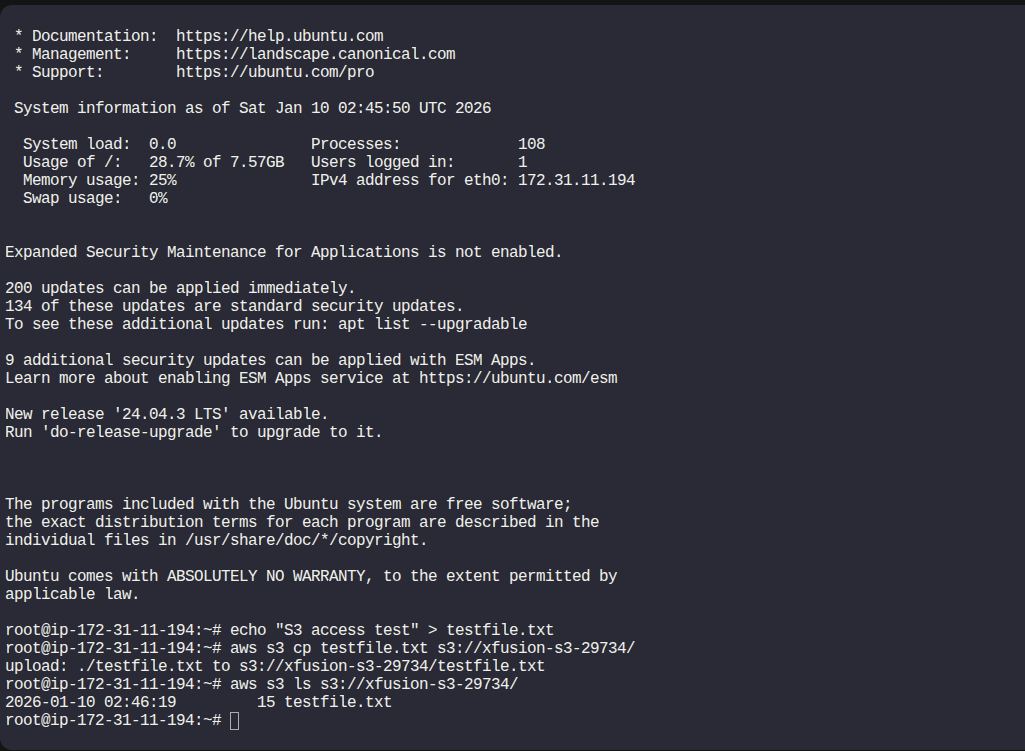
SSH into the EC2 instance and try to upload a file to xfusion-s3-29734 bucket using following command: aws s3 cp s3://xfusion-s3-29734/
Now run following command to list the upload file: aws s3 ls s3://xfusion-s3-29734/
Lab Solutions
Step 1: Verify Existing EC2 Instance
An EC2 instance named xfusion-ec2 already exists.
No changes are needed yet.
This instance will later be attached to an IAM role for S3 access.
Step 2: Set Up SSH Keys (Password-less Access) 2.1 Create SSH Key Pair on aws-client
Connect to the aws-client host.
# Generate a new SSH key pair:
ssh-keygen -t rsa -f /root/.ssh/id_rsa -N ""

# Confirm files exist:
ls /root/.ssh/
You should see:
id_rsa id_rsa.pub
2.2 Add Public Key to EC2 Instance
Connect to xfusion-ec2 using AWS Console (Instance Connect or Session Manager).
Allow SSH port from anywhere at EC2's Security Group
Edit authorized keys file:
sudo -i
vi /root/.ssh/authorized_keys
Paste contents of:
/root/.ssh/id_rsa.pub
Save and exit.
✅ Password-less SSH is now enabled.
Step 3: Create a Private S3 Bucket
Open AWS Console → S3
Click Create bucket
Configuration
Bucket name: xfusion-s3-29734
Region: Same as EC2
Object Ownership: ACLs disabled
Block Public Access: ✅ Keep all enabled (private bucket)
Click Create bucket
✅ Bucket is now private by default.
Step 4: Create IAM Policy for S3 Access 4.1 Create Policy
Go to IAM → Policies → Create policy
Choose JSON tab
Paste the following policy (replace region/account automatically handled):
{
  "Version": "2012-10-17",
  "Statement": [
    {
      "Effect": "Allow",
      "Action": [
        "s3:PutObject",
        "s3:GetObject"
      ],
      "Resource": "arn:aws:s3:::xfusion-s3-29734/*"
    },
    {
      "Effect": "Allow",
      "Action": "s3:ListBucket",
      "Resource": "arn:aws:s3:::xfusion-s3-29734"
    }
  ]
}
Click Next
Policy name:
xfusion-s3-policy
Click Create policy
Step 5: Create IAM Role and Attach Policy 5.1 Create Role
Go to IAM → Roles → Create role
Trusted entity:
AWS service
EC2
Click Next
5.2 Attach Policy
Select:
xfusion-s3-policy
Click Next
5.3 Role Name
Role name:
xfusion-role
Click Create role
Step 6: Attach IAM Role to EC2 Instance
Go to EC2 → Instances
Select xfusion-ec2
Click Actions → Security → Modify IAM role
Choose:
xfusion-role
Click Update IAM role
✅ EC2 now has permission to access S3.
Step 7: Test S3 Access from EC2 7.1 SSH into EC2 Instance
From aws-client:
ssh root@<xfusion-ec2-public-ip>

#7.2 Create a Test File
echo "S3 access test" > testfile.txt

#7.3 Upload File to S3
aws s3 cp testfile.txt s3://xfusion-s3-29734/

#7.4 List Files in the Bucket
aws s3 ls s3://xfusion-s3-29734/