How To Implement Microservices by Using AWS Containers
Updated
•3 min read
T
Cloud & SRE specializing in AWS and DevOps. I share my ongoing learning journey through practical tutorials and insights. Let's grow together.
Step 1. Create an ECR repository
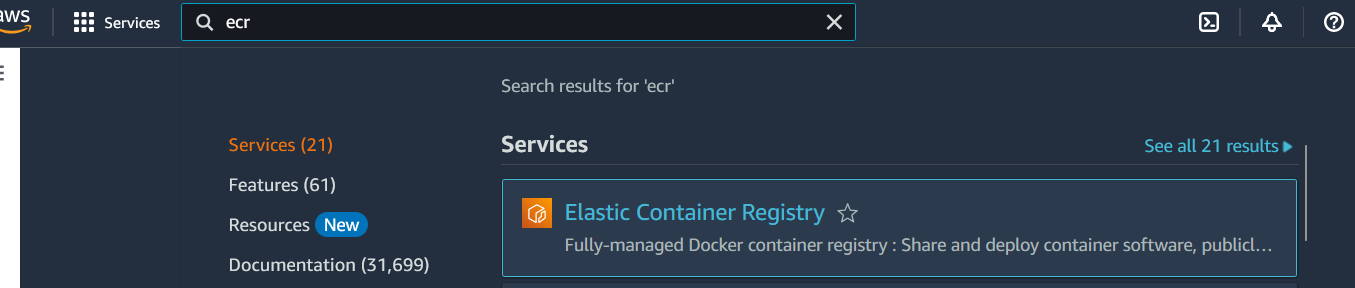
- In the AWS navigation bar, type
ECRinto the search box, and then selectElastic Container Registry service
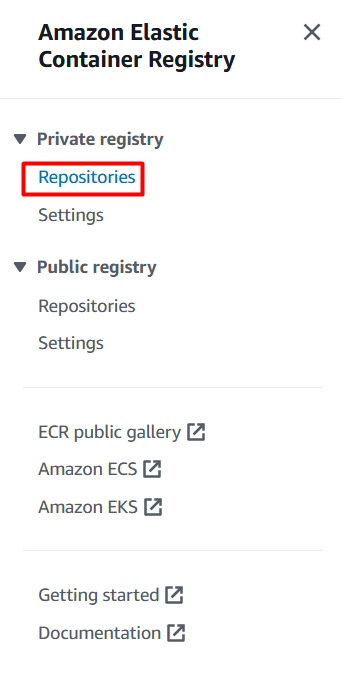
- Click
Repositories
- Click
Create repository

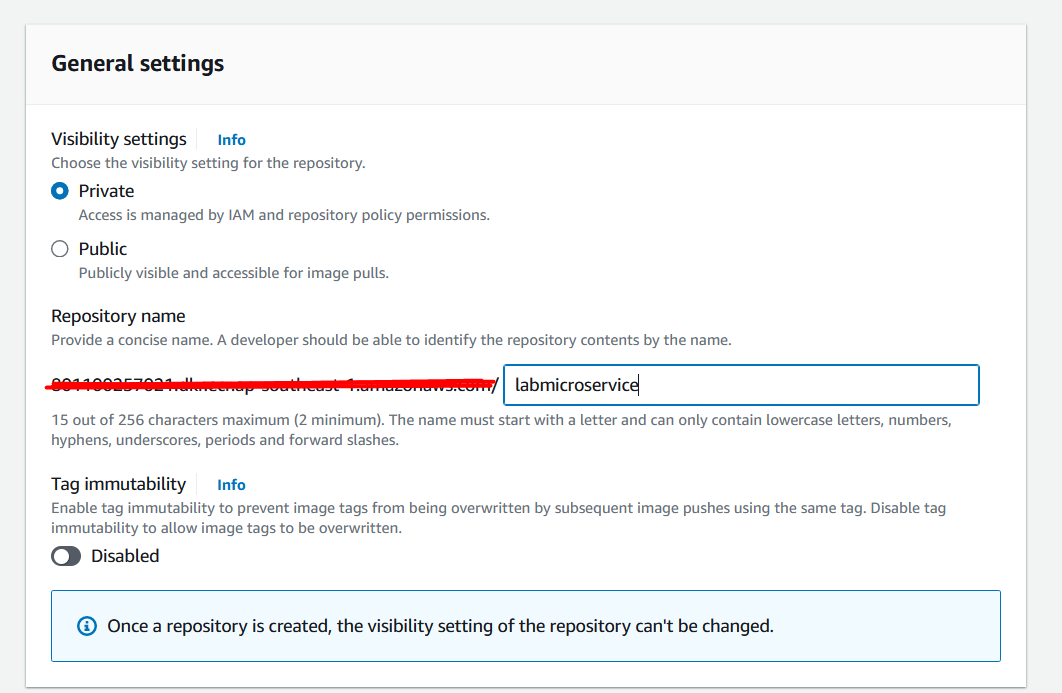
- Write Repository name
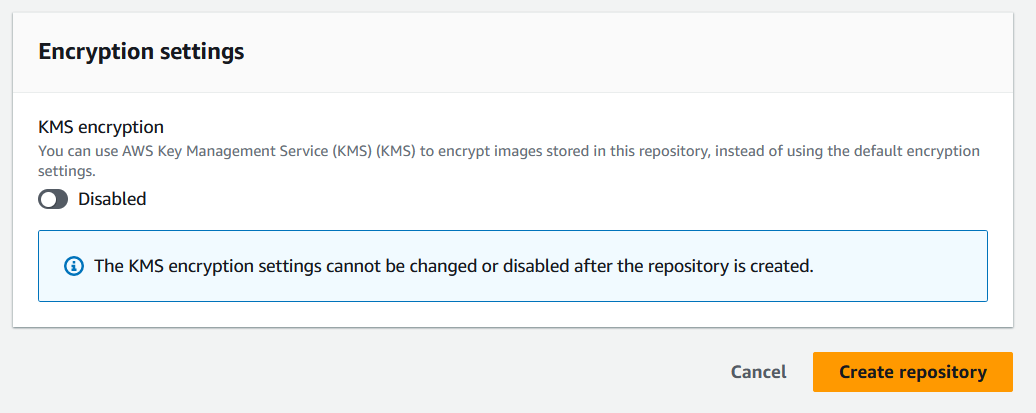
- Click
Create repository
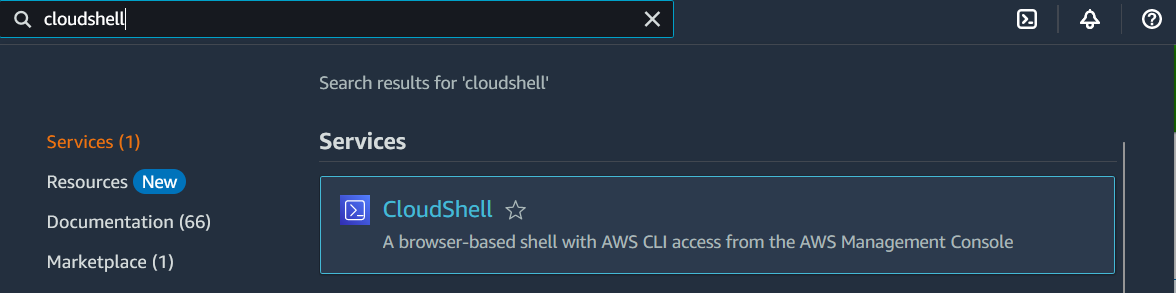
- In the AWS navigation bar, type
cloudshellinto the search box, and then click
- Click
Close
- Create new folder by typing the following command
mkdir ~/labmicroservice

- type the following command
cd ~/labmicroservice

- Create
Dockerfileby using VIM Editor
vim Dockerfile
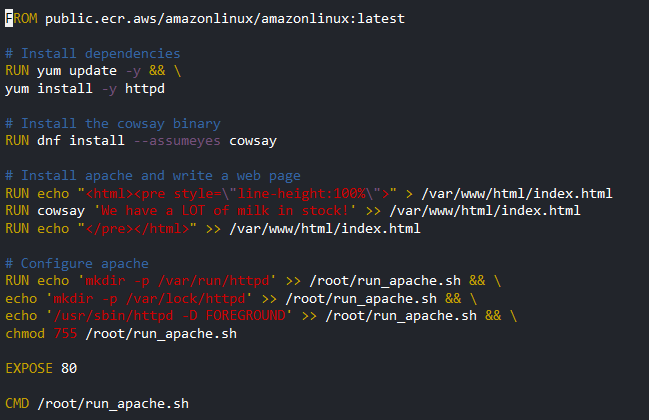
- Copy and paste the following command in
Dockerfileand save
FROM public.ecr.aws/amazonlinux/amazonlinux:latest

# Install dependencies
RUN yum update -y && \
yum install -y httpd

# Install the cowsay binary
RUN dnf install --assumeyes cowsay

# Install apache and write a web page
RUN echo "<html><pre style=\"line-height:100%\">" > /var/www/html/index.html
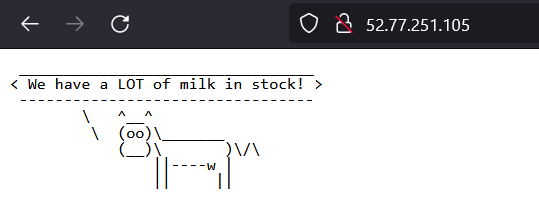
RUN cowsay 'We have a LOT of milk in stock!' >> /var/www/html/index.html
RUN echo "</pre></html>" >> /var/www/html/index.html

# Configure apache
RUN echo 'mkdir -p /var/run/httpd' >> /root/run_apache.sh && \
echo 'mkdir -p /var/lock/httpd' >> /root/run_apache.sh && \
echo '/usr/sbin/httpd -D FOREGROUND' >> /root/run_apache.sh && \
chmod 755 /root/run_apache.sh

EXPOSE 80

CMD /root/run_apache.sh
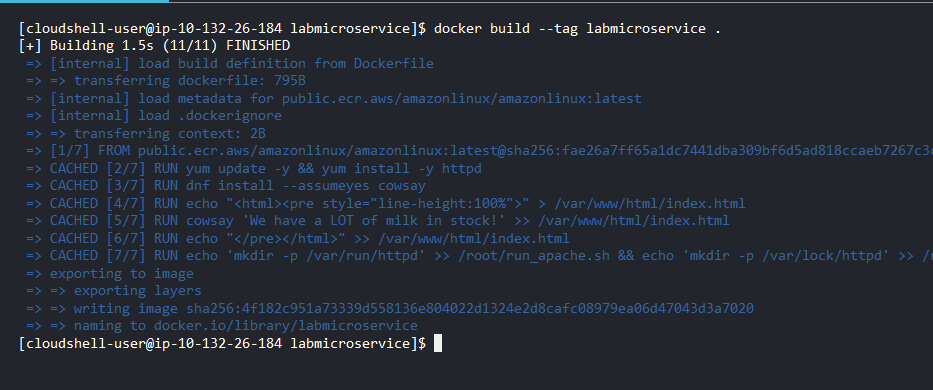
- Run the following command
docker build --tag labmicroservice .
Step 2. Deploy a Docker container to ECR
- Type the following command and press
Enter
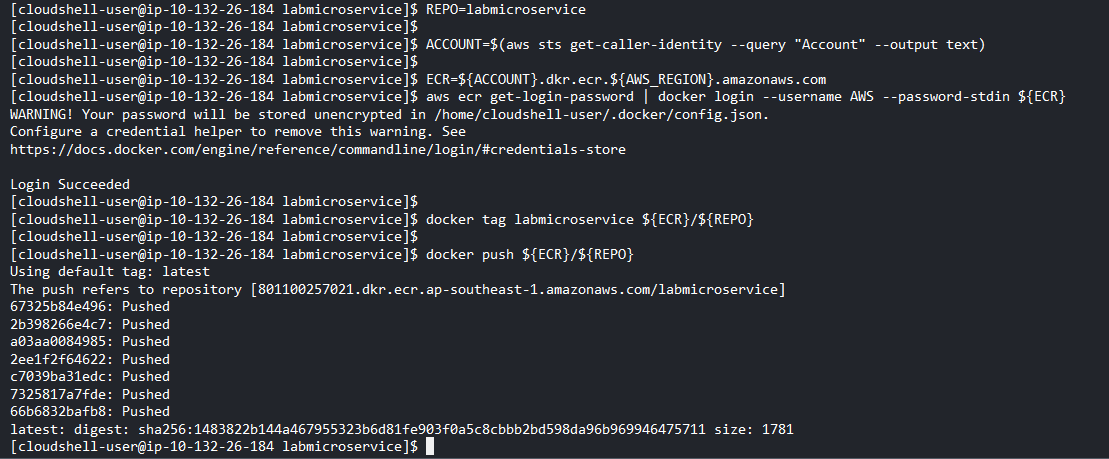
REPO=labmicroservice

ACCOUNT=$(aws sts get-caller-identity --query "Account" --output text)

ECR=${ACCOUNT}.dkr.ecr.${AWS_REGION}.amazonaws.com
aws ecr get-login-password | docker login --username AWS --password-stdin ${ECR}

docker tag labmicroservice ${ECR}/${REPO}

docker push ${ECR}/${REPO}
- Type the following command
aws ecr list-images --repository-name labmicroservice --region ${AWS_REGION}

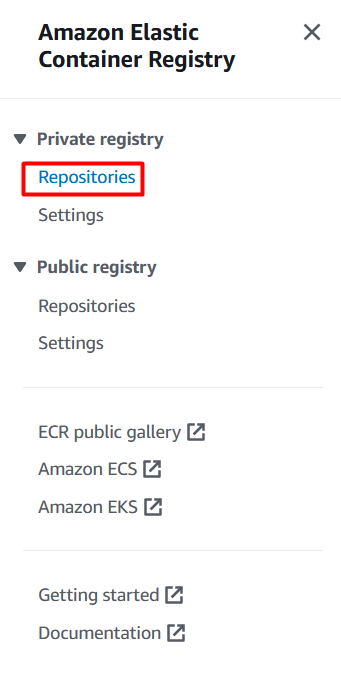
- Click
Repositories
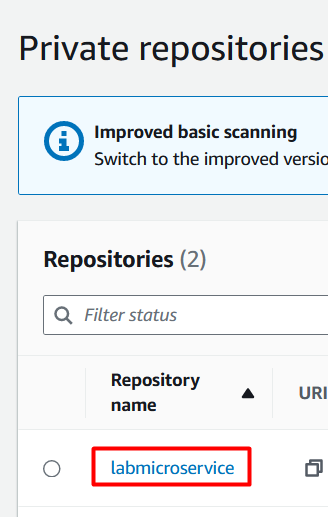
- Click
labmicroservice
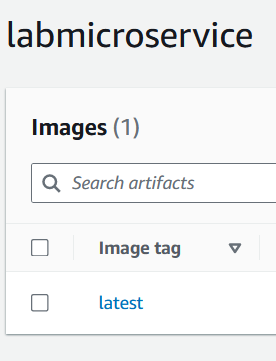
- Click
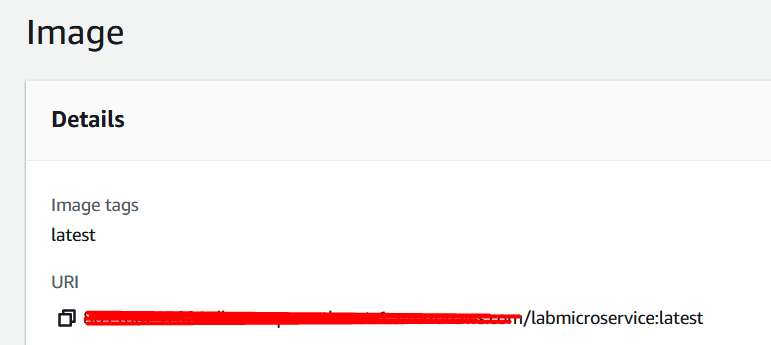
latest
- Copy this URL
Step 3. Create an ECS cluster using Amazon Fargate
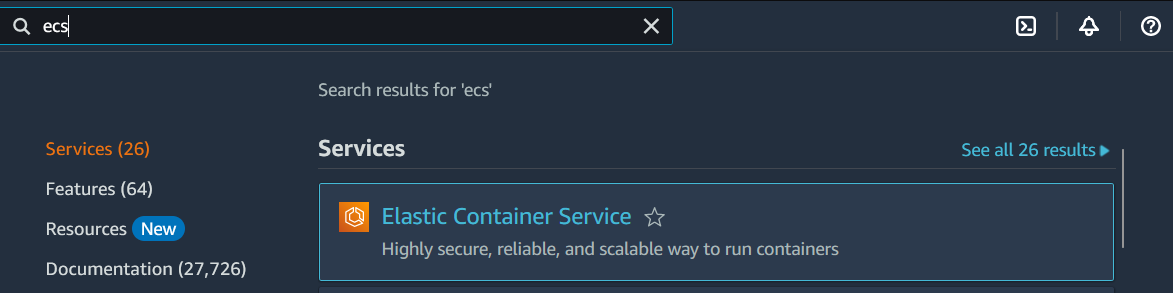
- Type
Elastic Container Servicein Services and click
- Click
Create cluster

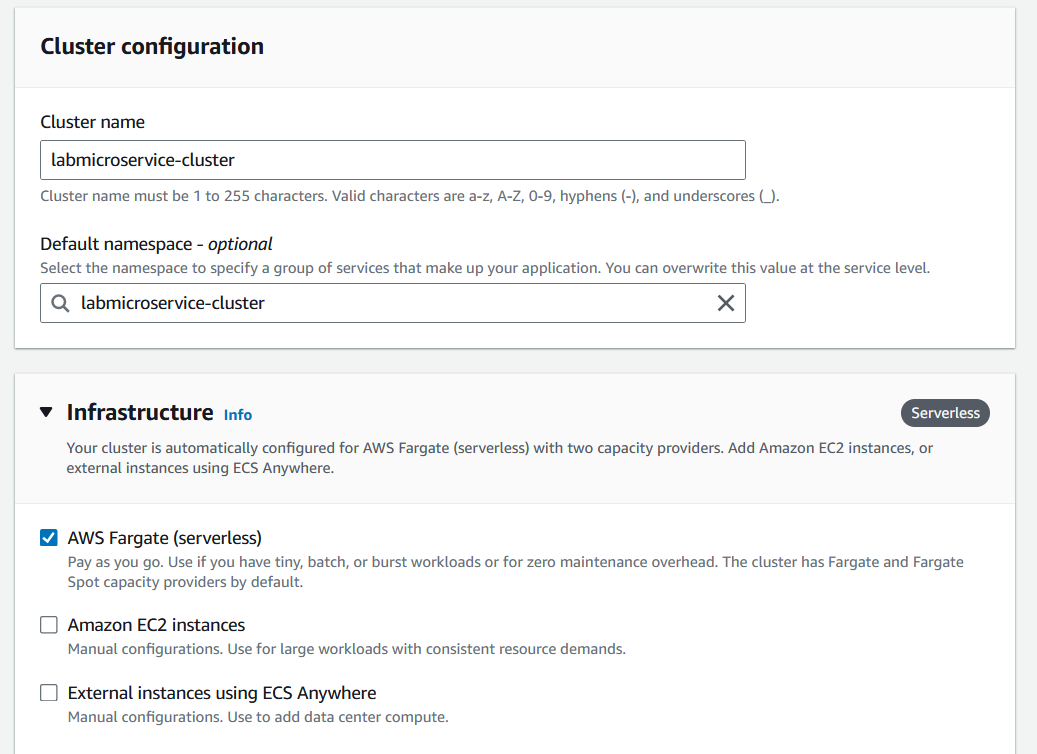
- Type Cluster name and Choose
AWS Fargate (serverless)then ClickCreate

- Click
Task definitions
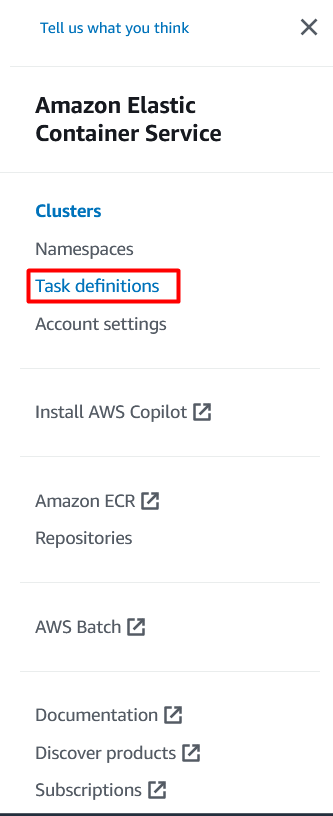
- Click
Create new task definitionand chooseCreate new task definition

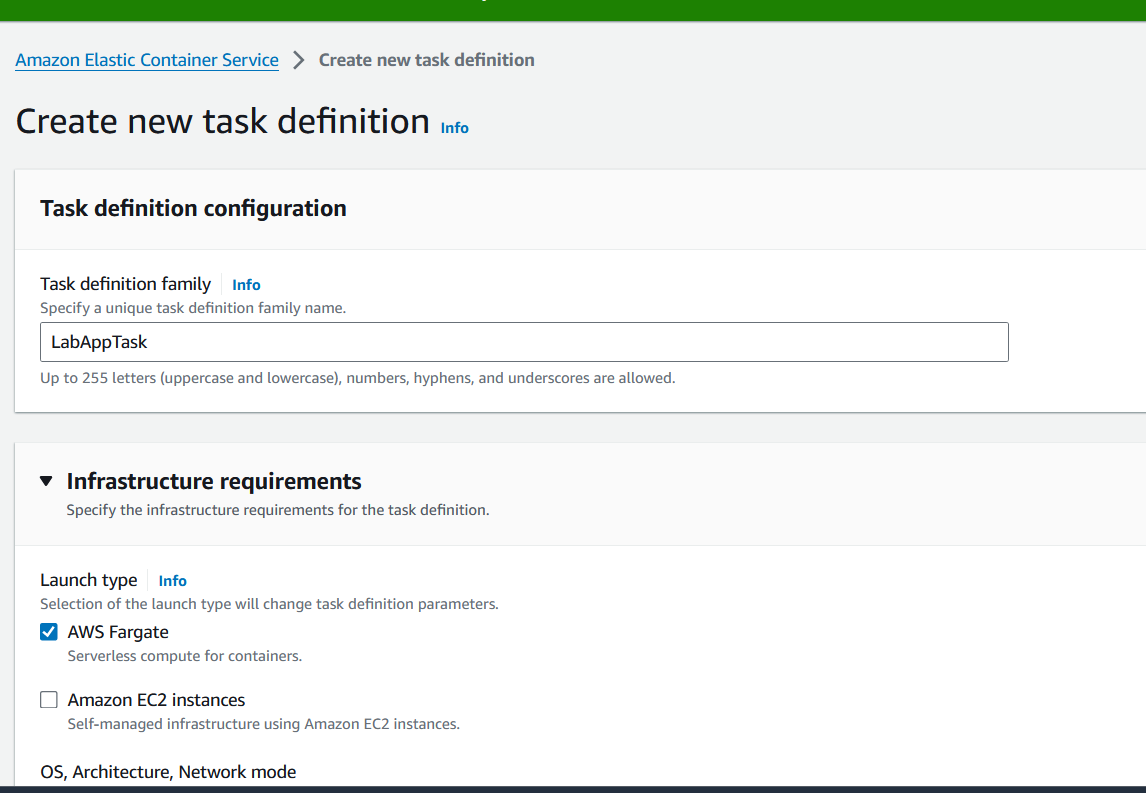
- Type name and paste ULR you copied earlier

- Clear
Use log collection

- Click
Create

- Select
Create service

- Select
Launch type
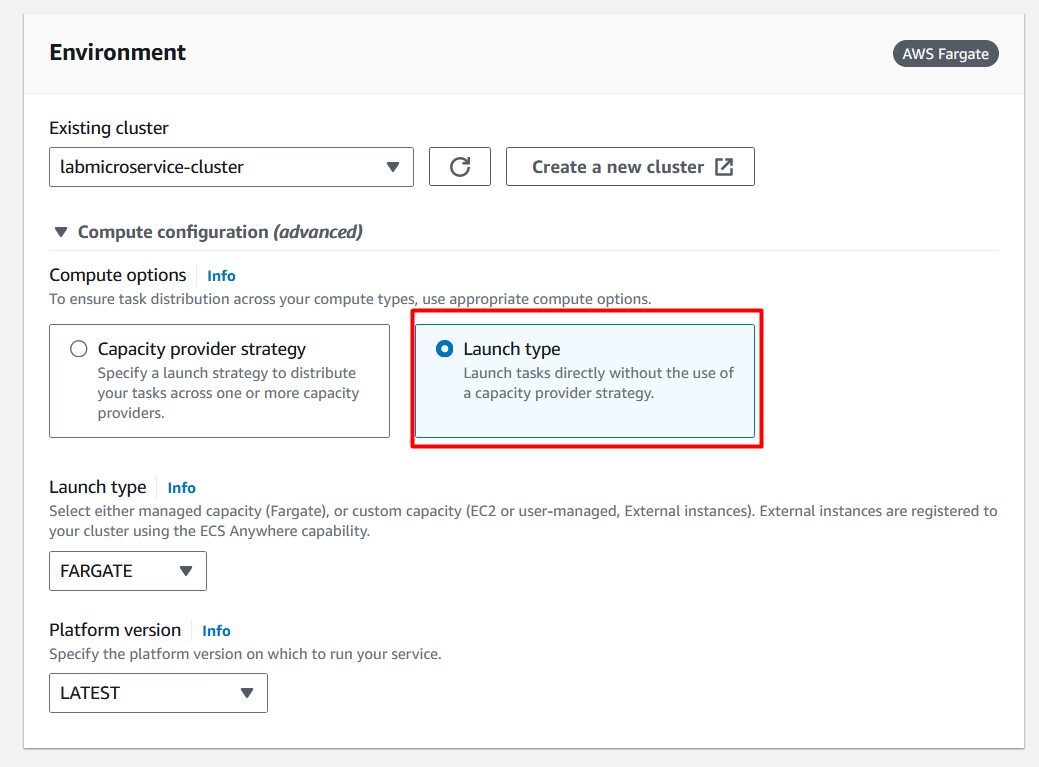
- Type
Service name
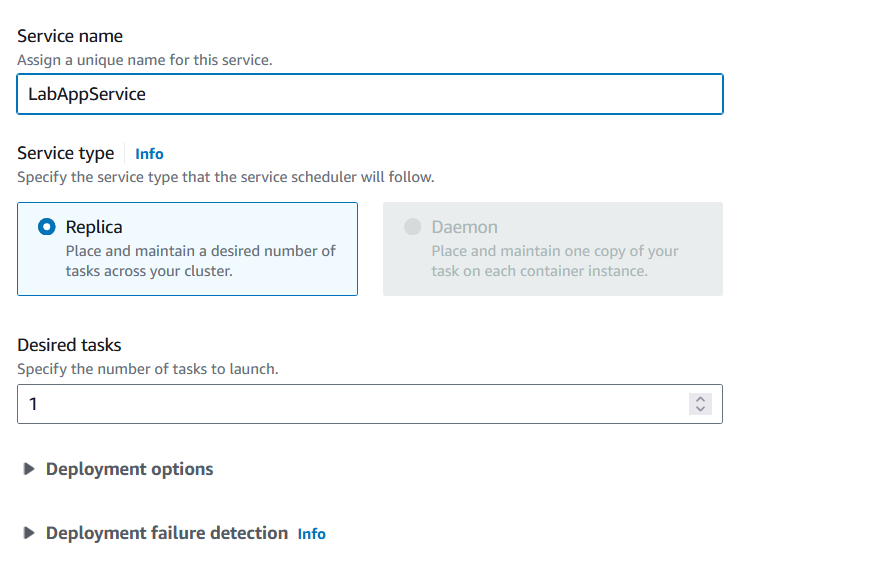
Select
VPCand ChooseAll subnetsandSecurity GroupClick
Create


Step 4. Test the container application
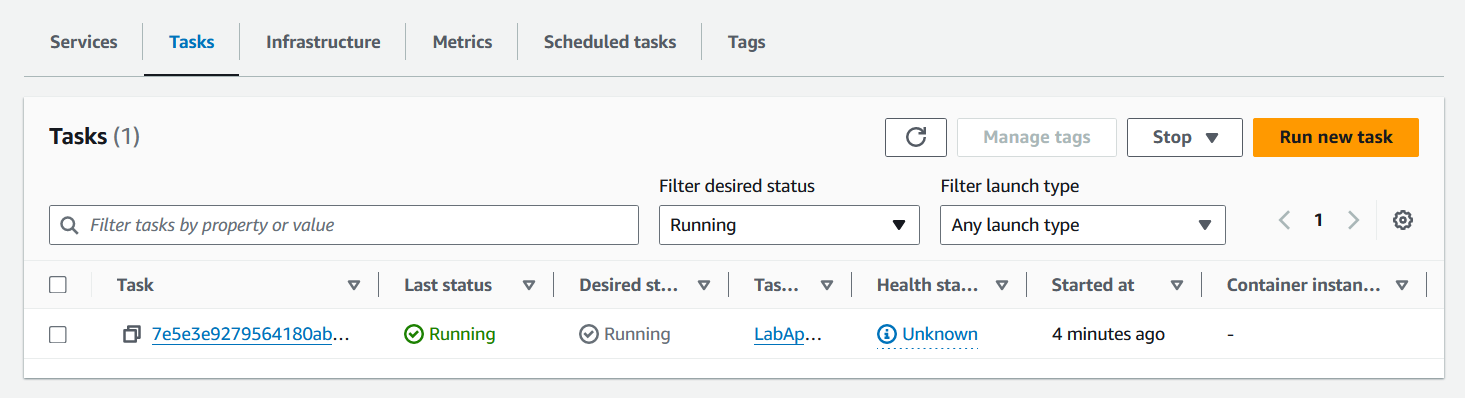
- Click
Taskand Click on task name
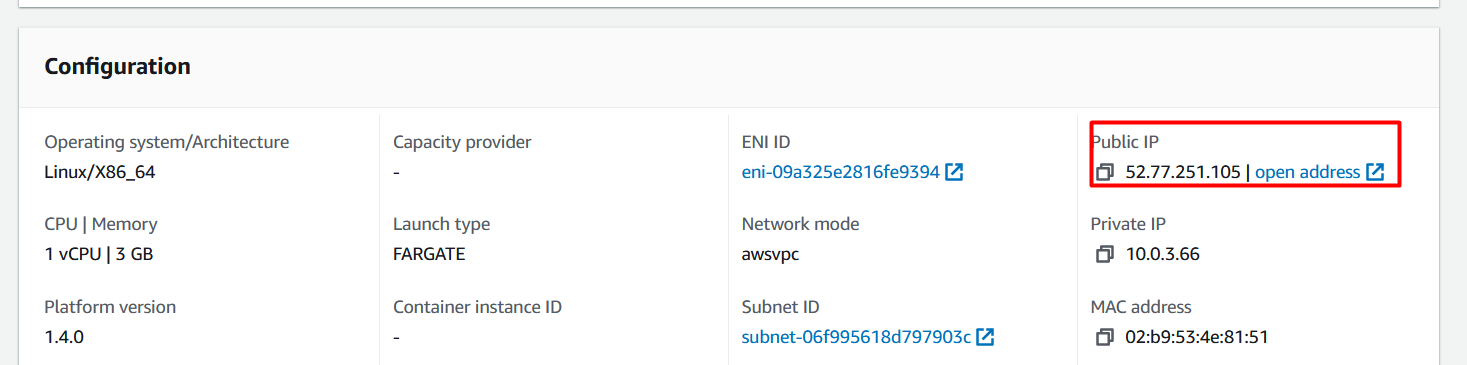
- Copy
Public ipand open in new browser
Resources & Next Steps
- 📦 Full Code Repository: AWS Learning Labs - Get the complete, working code from this post
- 📖 More Deep Dives: Whispering Cloud Insights - Read other technical articles
- 💬 Join Discussion: DEV Community - Share your thoughts and questions
- 💼 Let's Connect: Linkedin - I'd love to connect with you


