Day 12.Attach Volume to EC2 Instance
Cloud & SRE specializing in AWS and DevOps. I share my ongoing learning journey through practical tutorials and insights. Let's grow together.
Lab Information
The Nautilus DevOps team has been creating a couple of services on AWS cloud. They have been breaking down the migration into smaller tasks, allowing for better control, risk mitigation, and optimization of resources throughout the migration process. Recently they came up with requirements mentioned below.
An instance named devops-ec2 and a volume named devops-volume already exists in us-east-1 region. Attach the devops-volume volume to the devops-ec2 instance, make sure to set the device name to /dev/sdb while attaching the volume.
Lab Solutions
Step-by-Step Instructions (AWS Console)
- Log in
Use the provided console URL and credentials. Confirm region = us-east-1.
- Check Volume Availability
Open the EC2 service.
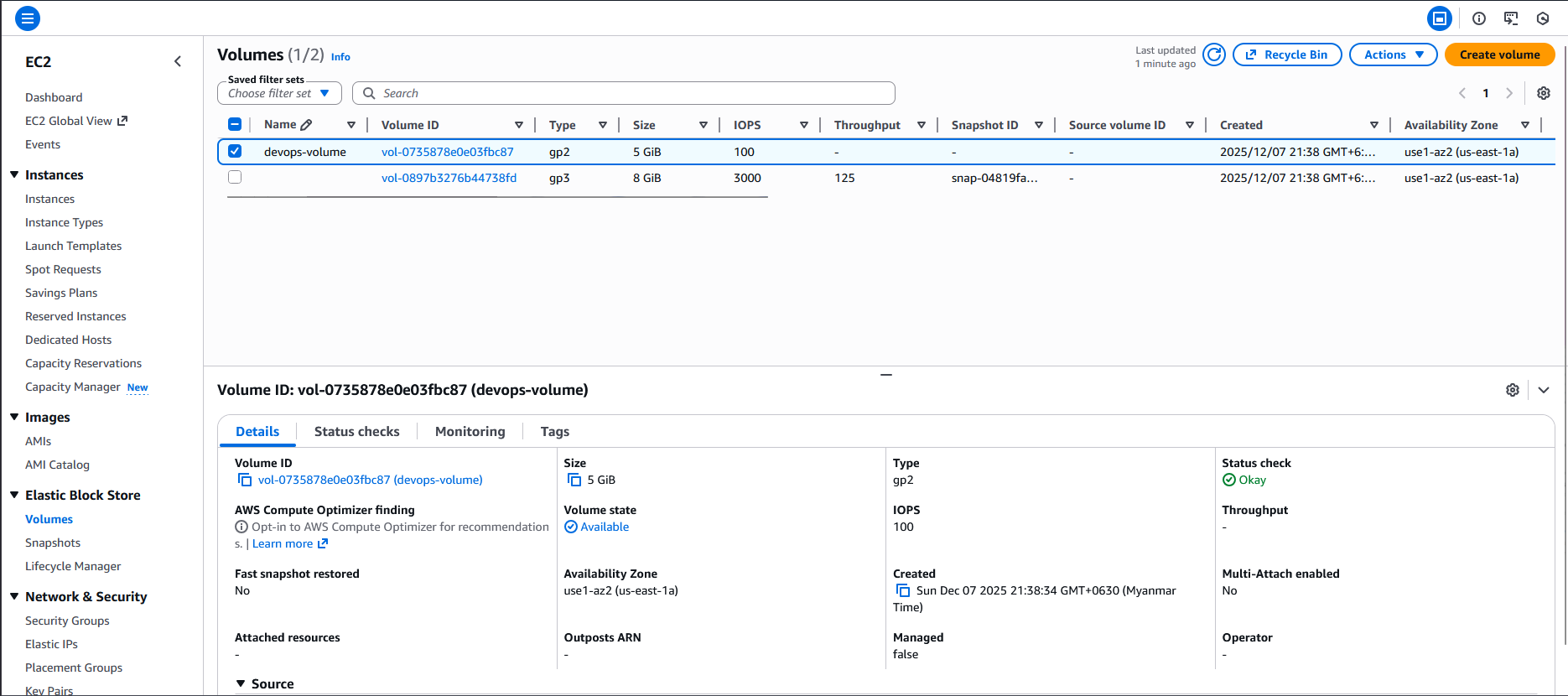
In the left panel → click Volumes (under “Elastic Block Store”).
Find devops-volume.
Ensure its state = available.
Also verify the Availability Zone (AZ). Important: The EC2 instance must be in the same AZ as the volume.
- Check the Instance
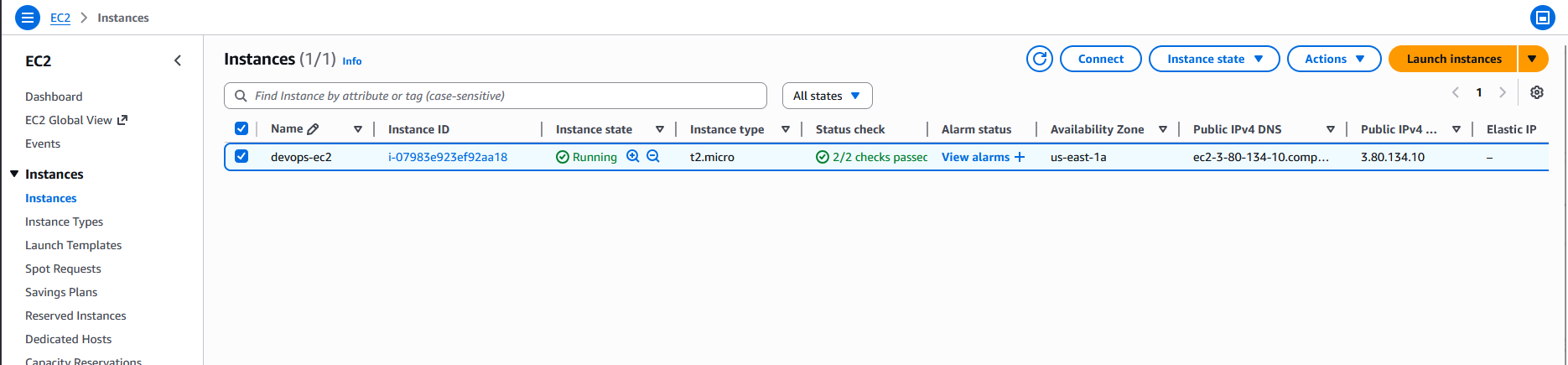
Go to Instances
Locate devops-ec2
Ensure it is in the same Availability Zone as the volume.
Instance can be running — attaching works for both stopped and running states.
- Attach the Volume
Go back to Volumes
Select devops-volume
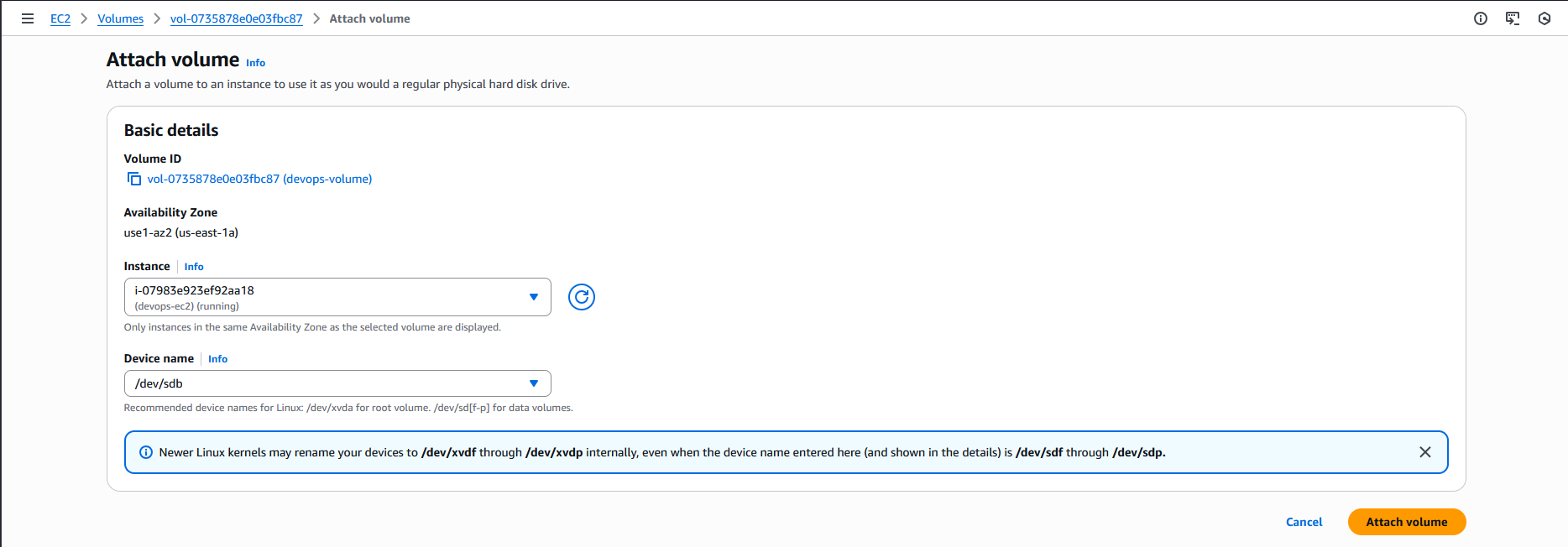
Click Actions → Attach volume
In the popup:
Instance: Choose devops-ec2
Device name: Enter /dev/sdb
Click Attach volume
- Verify Attachment
After attaching:
Volume state should change to in-use
Under Attachment information, it should show:
Instance ID: (devops-ec2)
Device: /dev/sdb
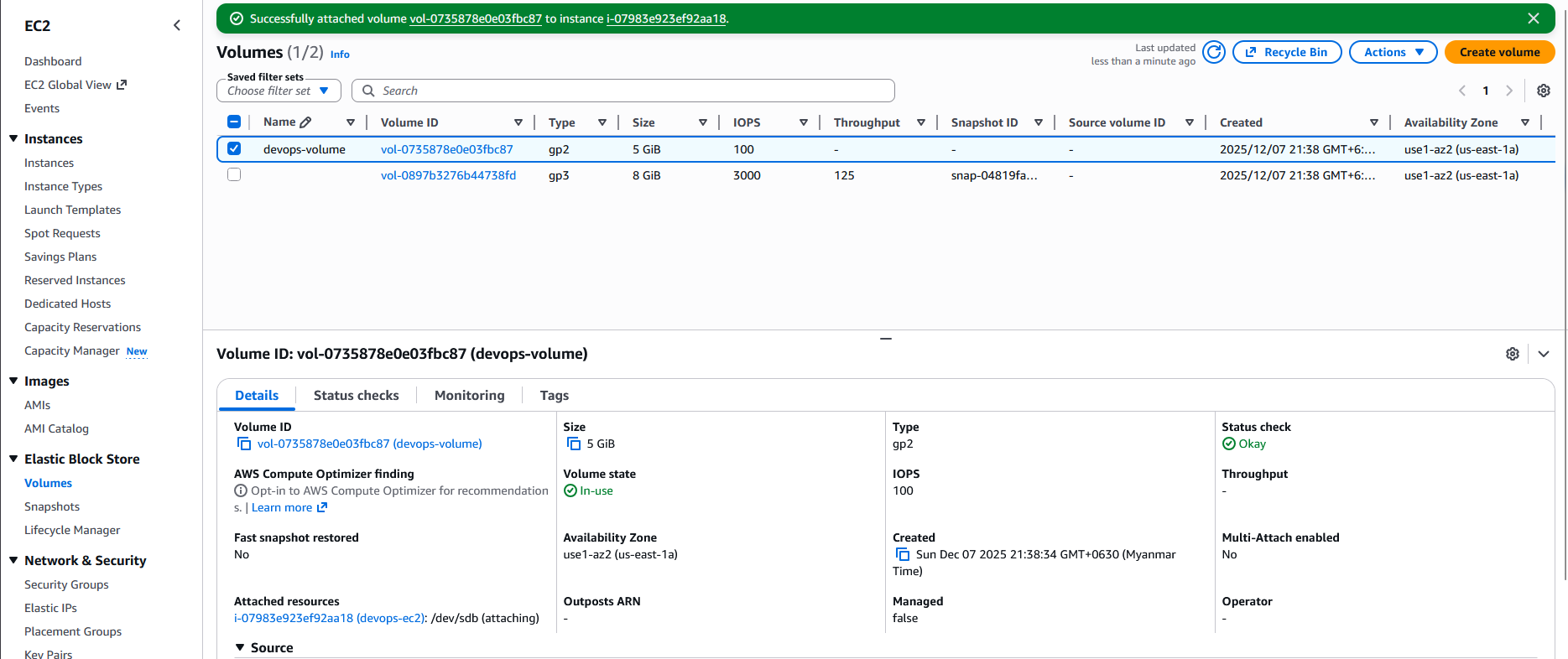
On the EC2 devops-ec2 instance page:
Open Storage tab
You should now see an additional block device listed as /dev/sdb
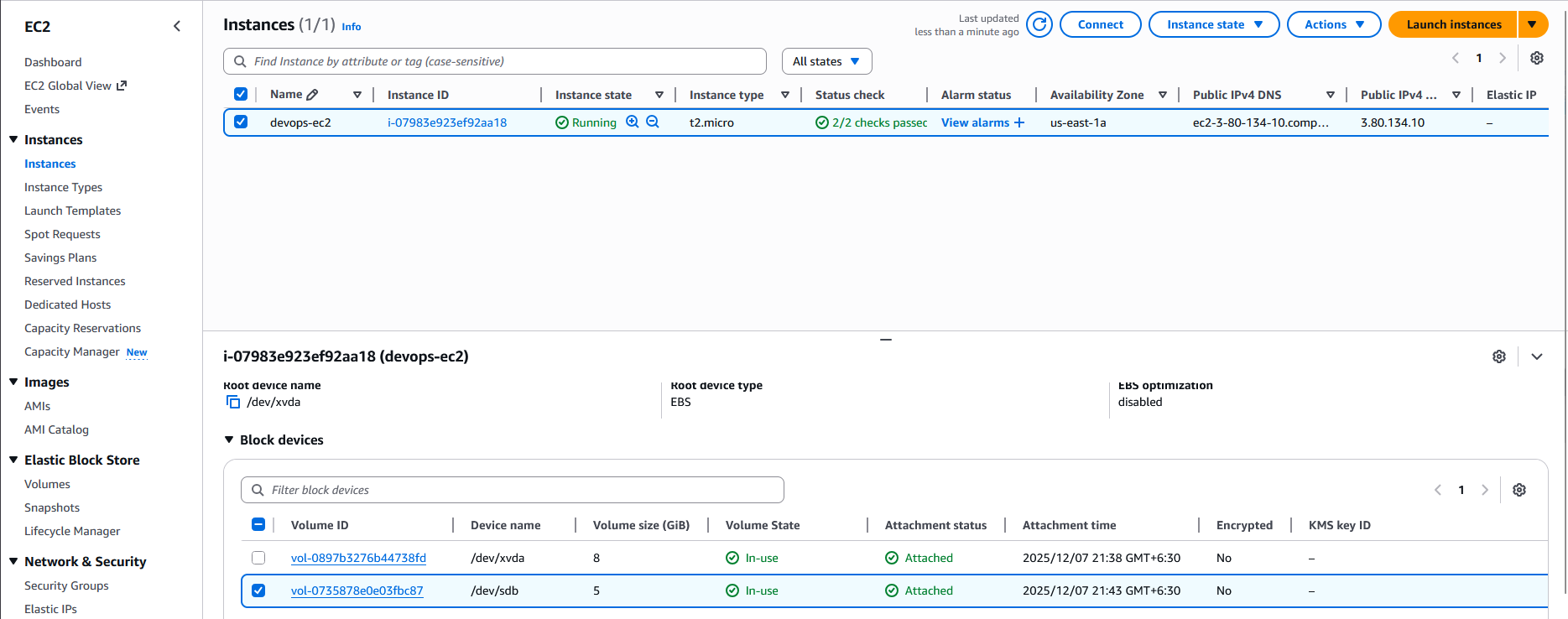
Resources & Next Steps
- 📦 Full Code Repository: KodeKloud Learning Labs
- 📖 More Deep Dives: Whispering Cloud Insights - Read other technical articles
- 💬 Join Discussion: DEV Community - Share your thoughts and questions
- 💼 Let's Connect: Linkedin - I'd love to connect with you
Credits
- All labs are from: KodeKloud
- Thanks for providing them.


